Approve an Allocation Job
Approve an allocation job after the reports have been reviewed and any needed corrections have been made.
Approving the job indicates that the allocation results are ready for the next step, such as downloading reports or exporting files for Municipal.

Before You Approve an Allocation Job
Before approving an allocation job, review the job results and confirm that any needed corrections are complete.
Review the following before approval:
- Job Summary
- Warning log, if a warning appeared
- Match Exceptions report
- Non-Taxable report
- Allocation Detail report
- Address Corrections report, if corrections were made
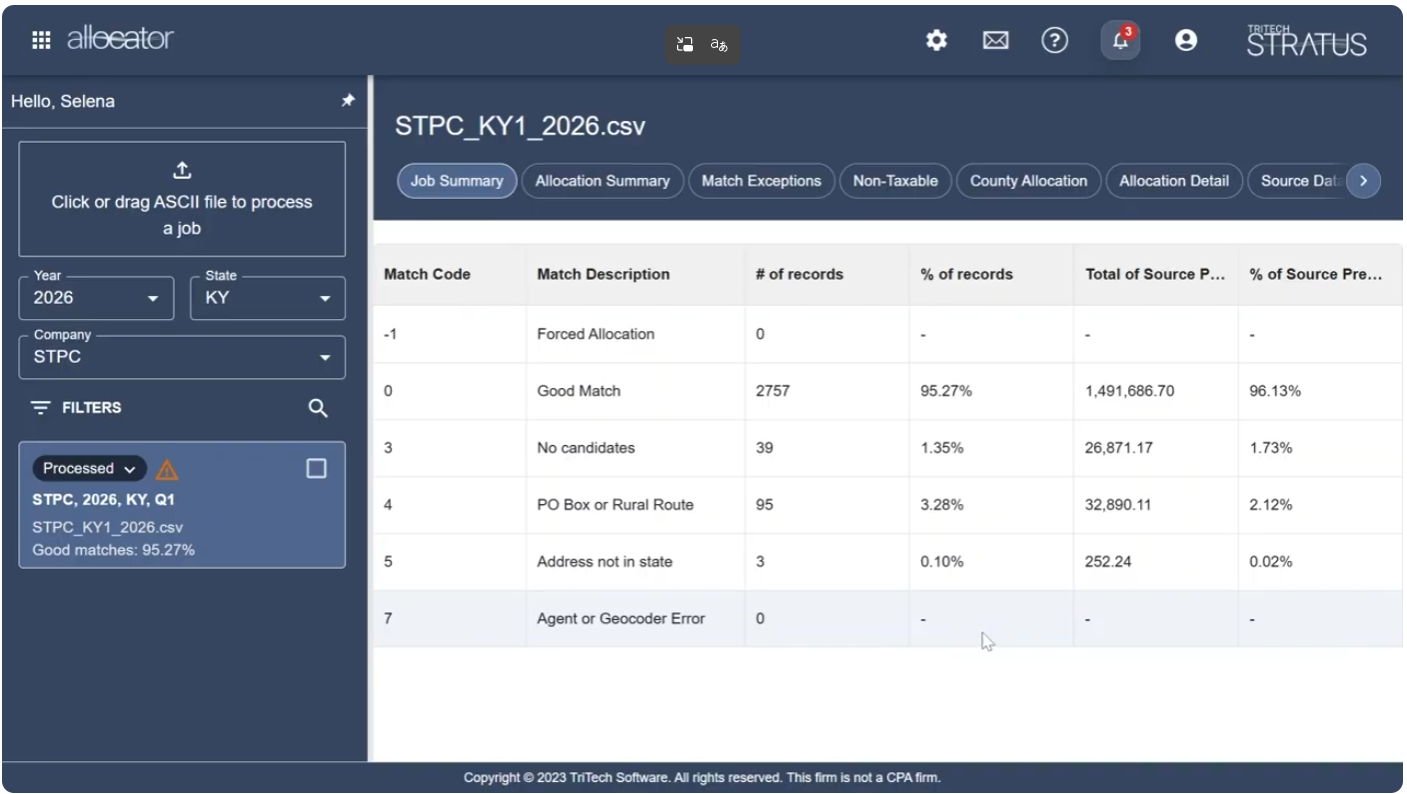
Review Address Corrections
If address corrections were made, review the Address Corrections report before approving the job.
The Address Corrections report shows which addresses were changed, who made the changes, and when the changes were made.
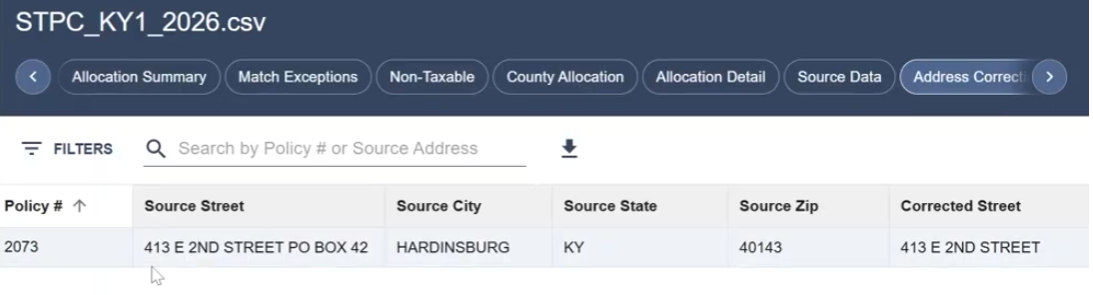
Confirm the Job Is Ready
Confirm that the reports look complete and accurate.
If additional changes are needed, keep the job in Under Review until the review is complete.
If no additional changes are needed, the job can be approved.
Change the Job Status to Approved
To approve the job, change the job status to Approved from the job tile.
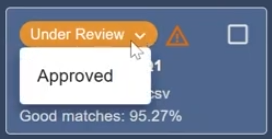
After the job is approved, the allocation results are ready for download or export.
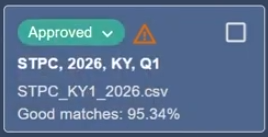
After the Job Is Approved
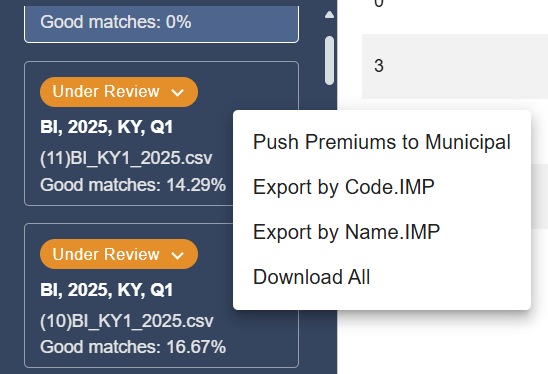
After approval, you can download reports or export files for the next step.
Depending on your workflow, you may:
- Download all reports.
- Export a Municipal import file.
- Push premiums to Municipal, if available.
To access these options, right-click inside the job tile.
Next Step
After approving the job, download reports or export the files needed for the next step.
Related Articles
- How do I process an Allocator file?
- Allocator Reports
- Review the Warning Log
- Correcting Addresses in Allocator
- Non-Taxable Report
- Download Allocator Reports and Export Files